


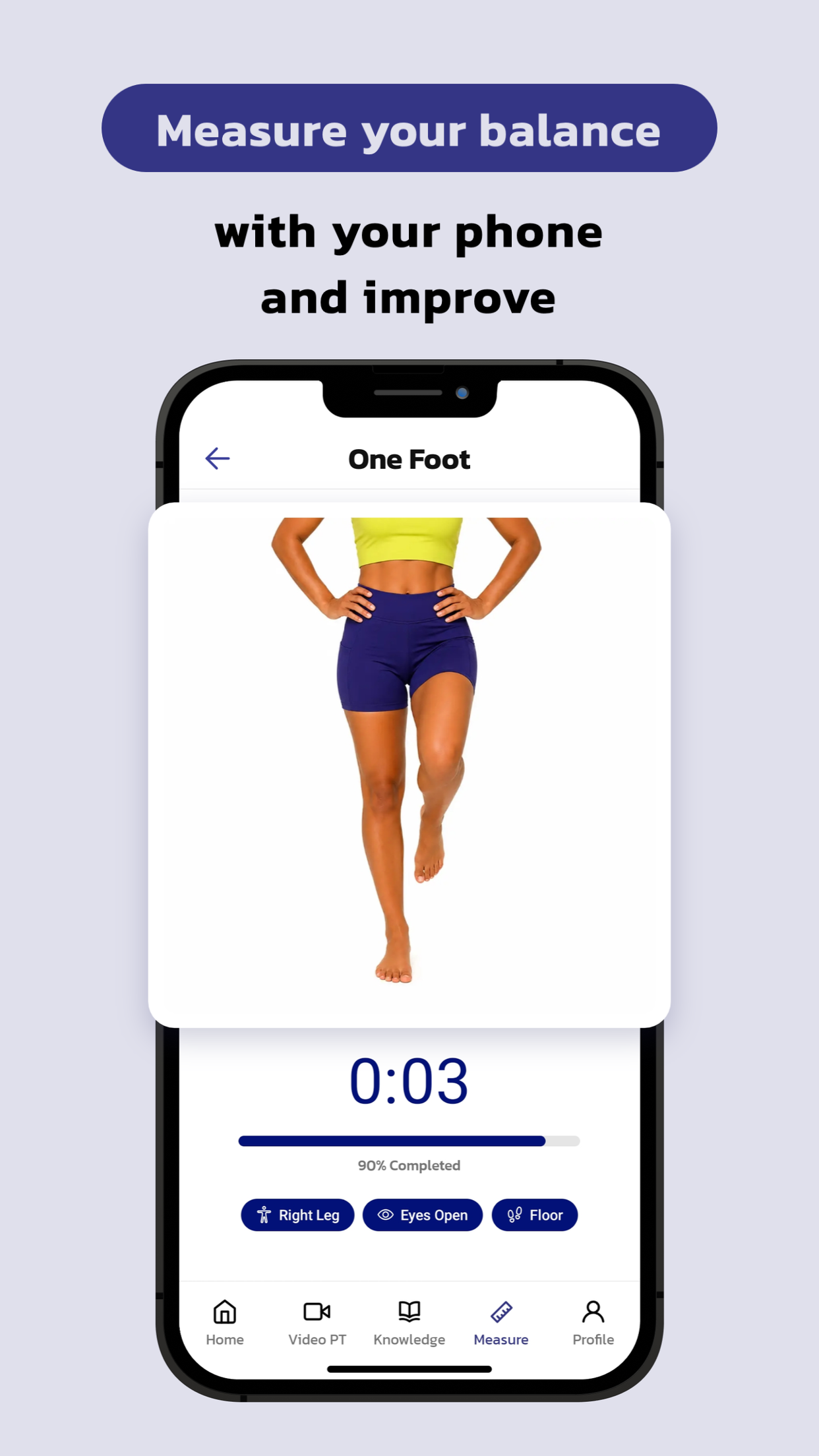
If testing your balance, improving your balance, preventing falls, preventing injuries, balance therapy, postural stability or balance exercises are important to you, read on. In my previous BLOG I explained how I helped to develop the app called myAnkle which is capable of measuring balance. myAnkle uses the sensors that are already in your phone to objectively measure your balance and provide you with a Balance Number. You can use this Balance Number to compare your balance on your right and left leg. If you want to learn more about how myAnkle was developed and the research that proves you can use your phone to measure balance, read my previous BLOG here. The focus of this blog will be to provide some simple instructions to use myAnkle to measure your balance.
Step 1: Download Curovate to measure your balance with myAnkle
The first thing you need to do is download the Curovate app. myAnkle is a measurement feature that is now built into the existing and readily available Curovate app. You can either visit the Curovate website or you can scroll to the bottom of this blog and download the Apple iOS app or the Google Play app from the links below. Curovate has a 5 day free trial, during which time you can test out the myAnkle balance measurement, and then decide if you would like to subscribe to Curovate.
Step 2: Go to “Measure” in the Curovate app to Measure your Balance
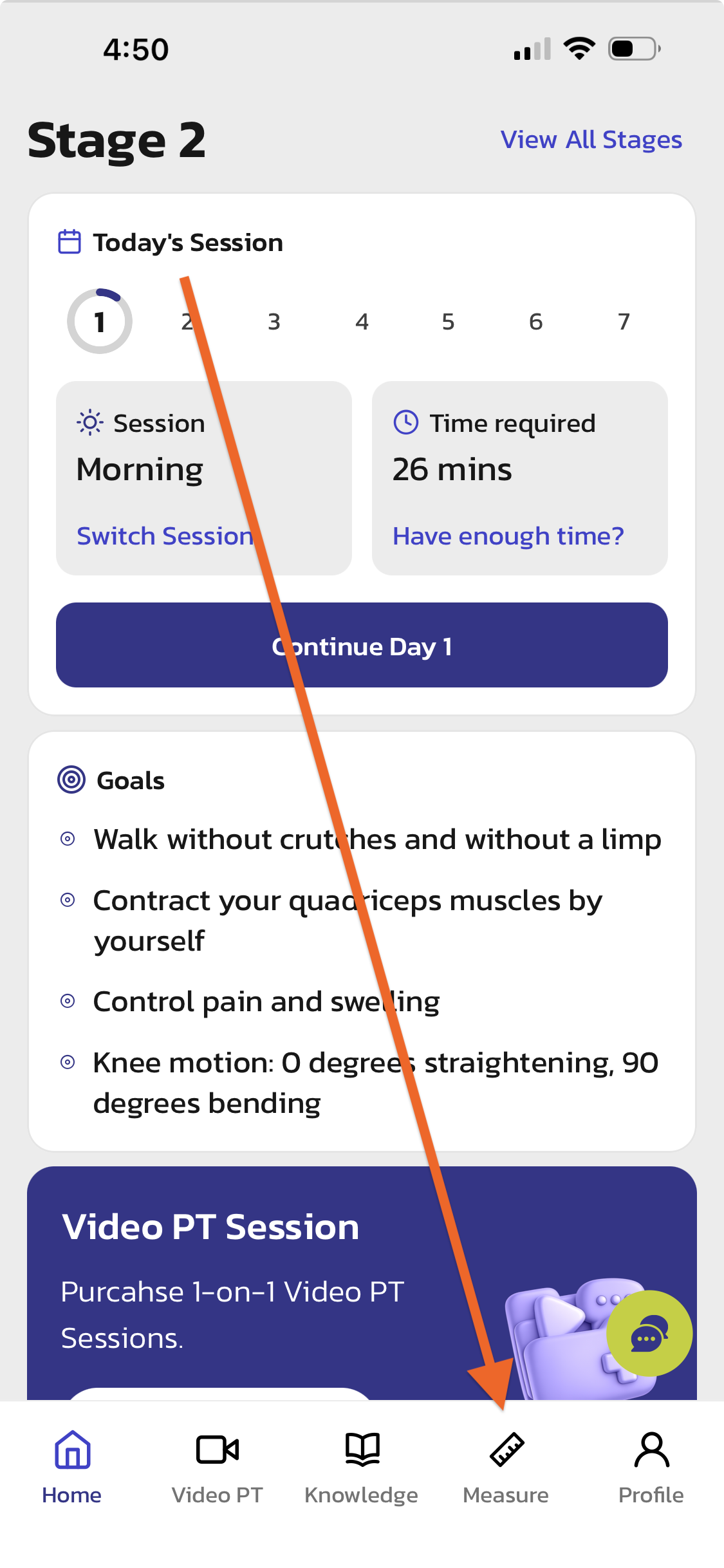
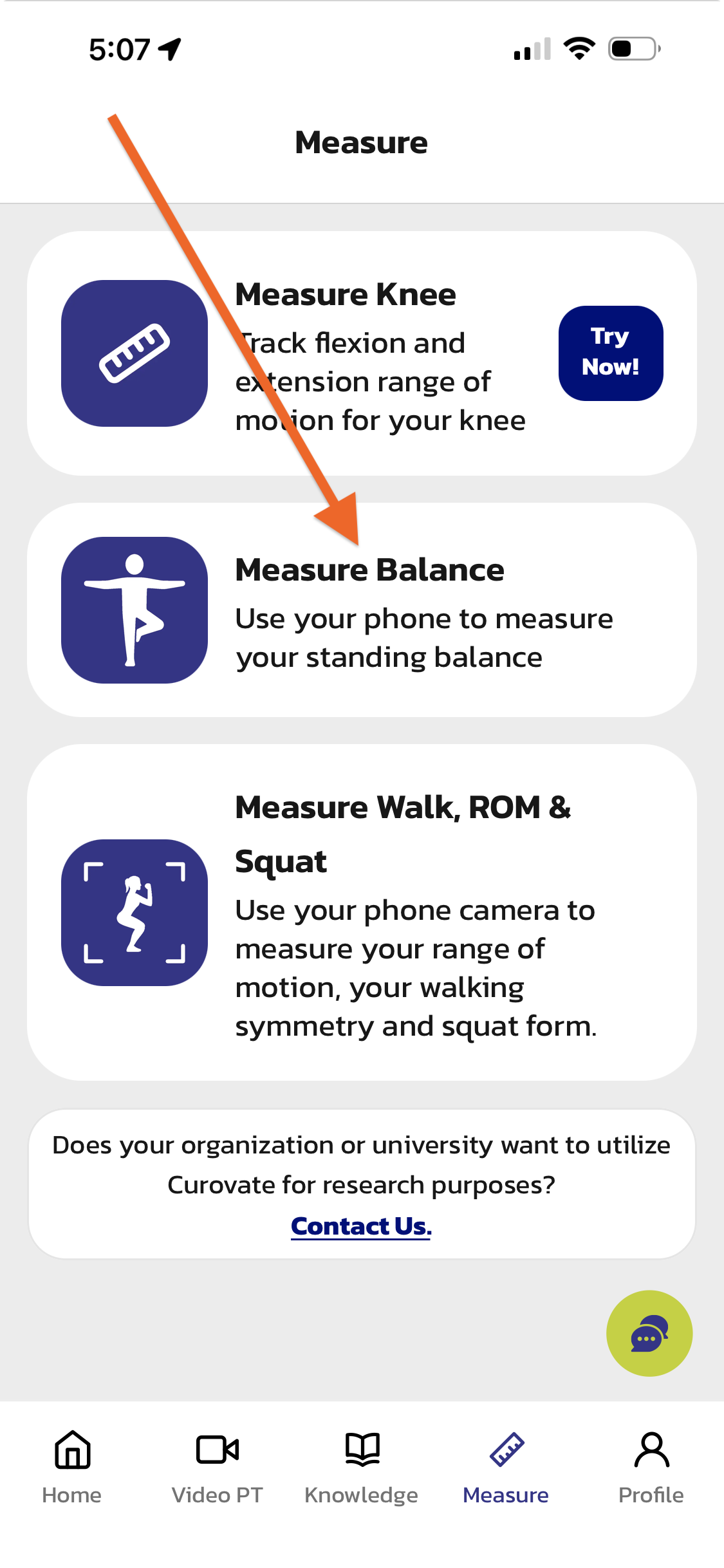
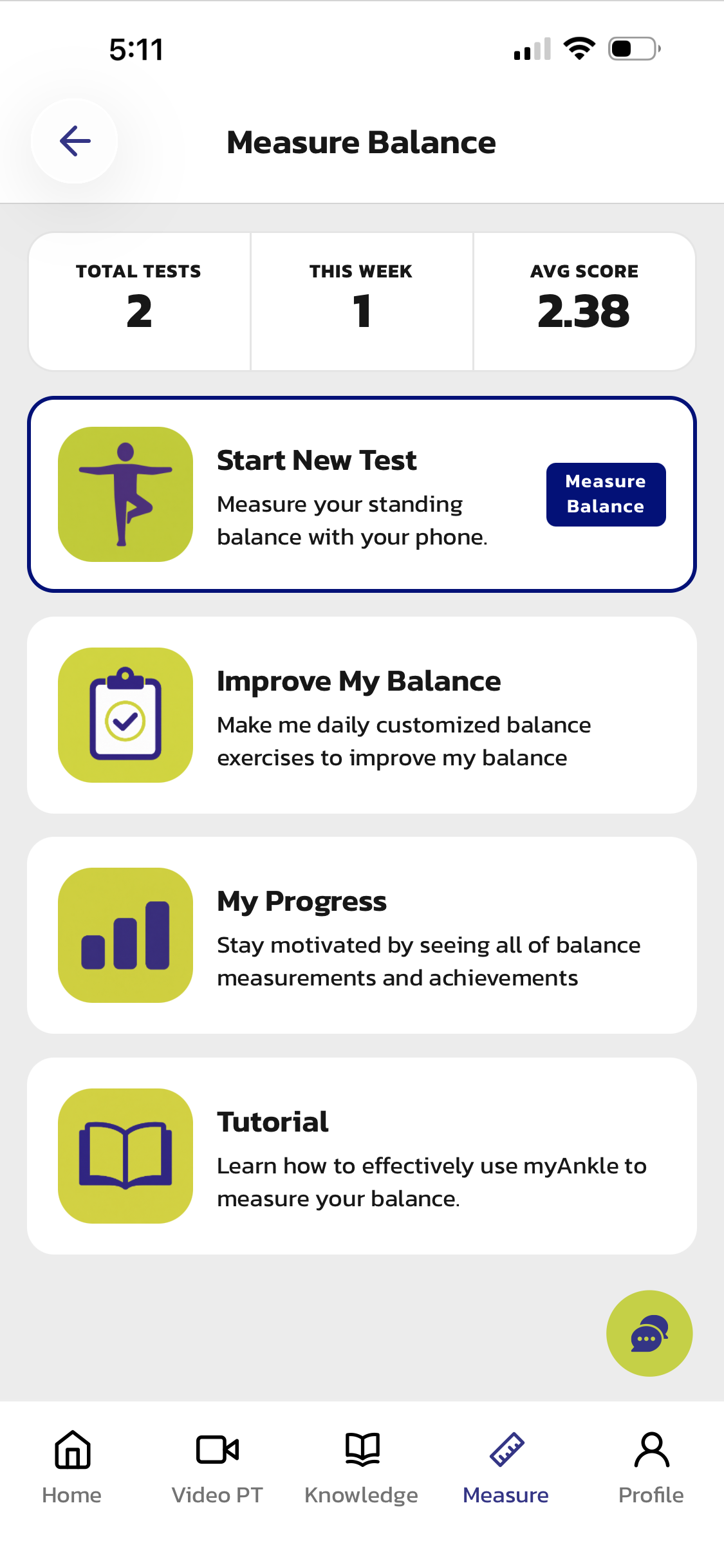
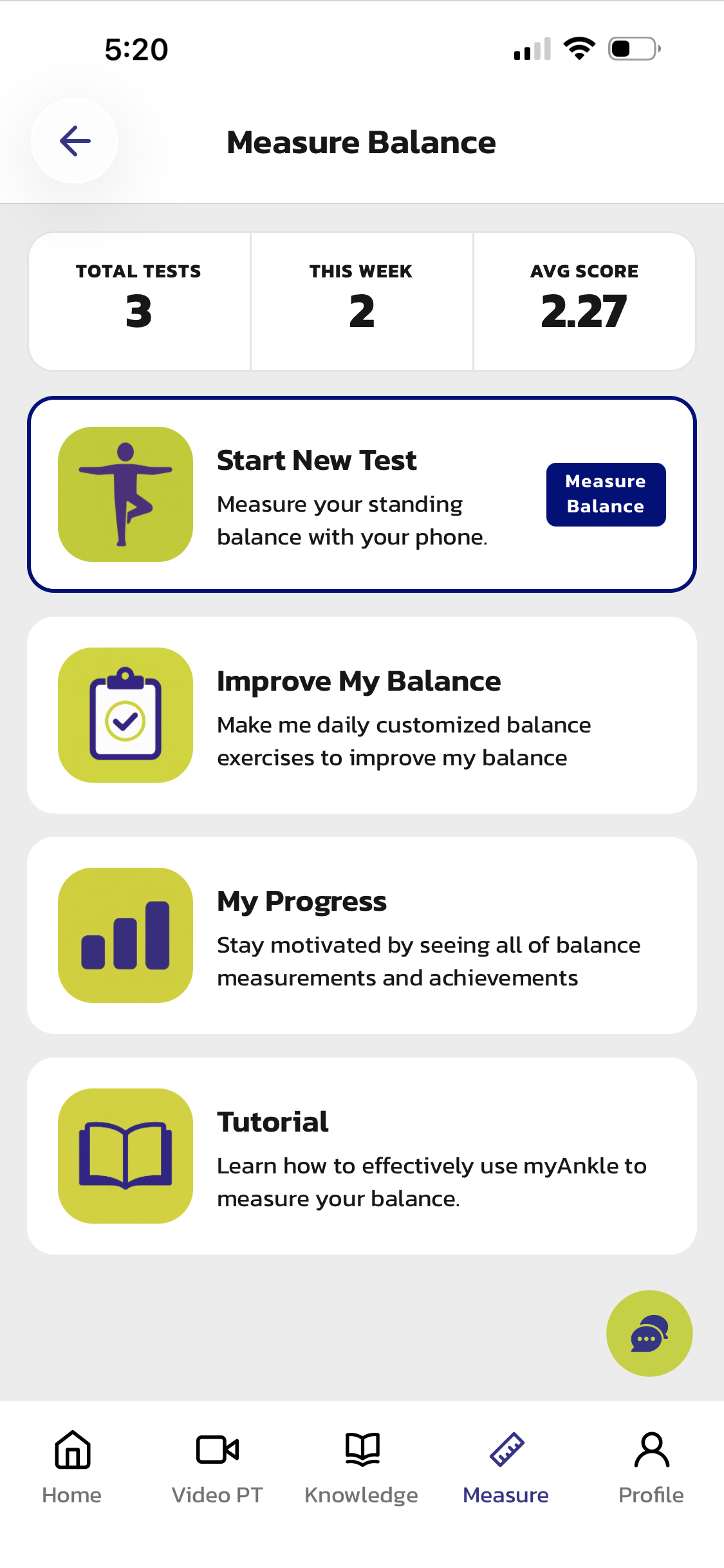
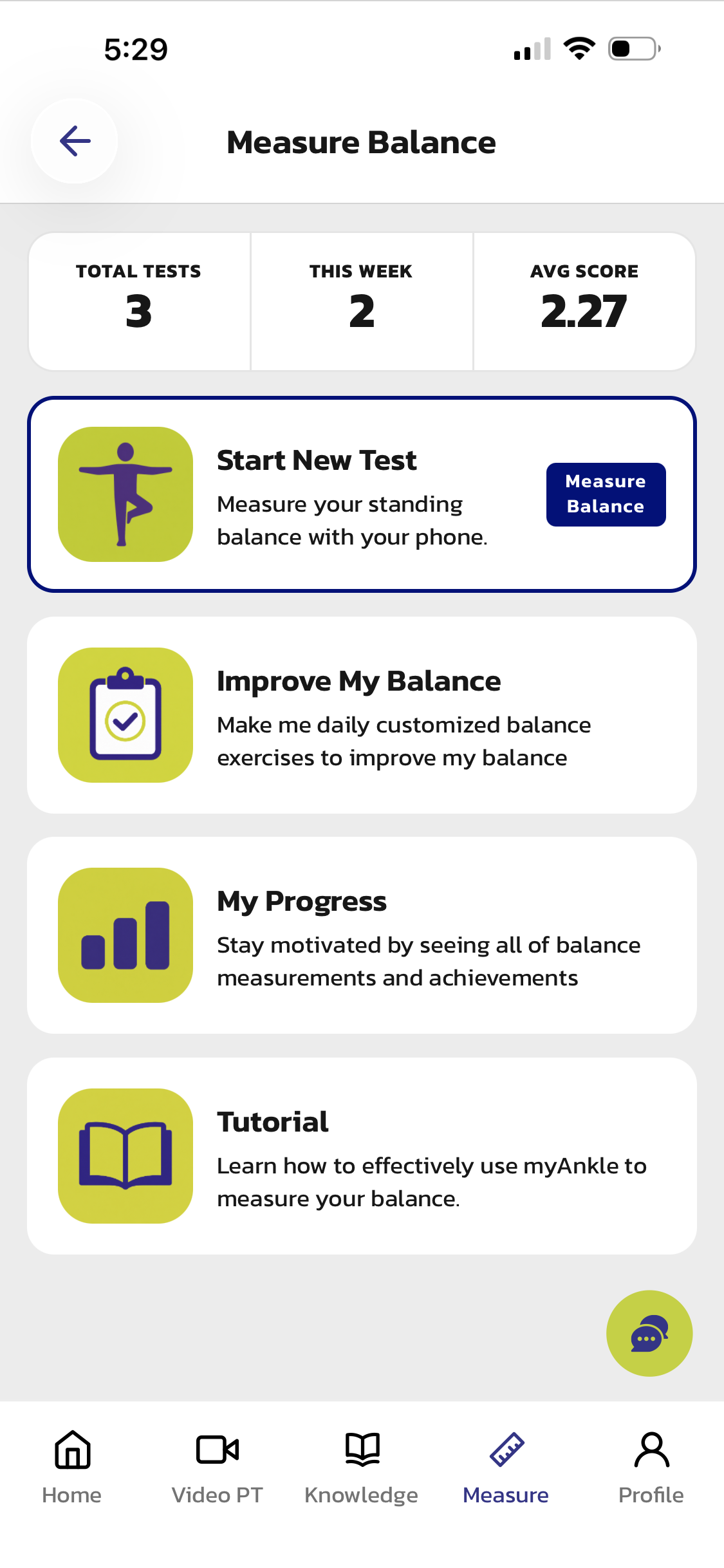
From the home screen select select “Measure” and you will see an option called “Measure Balance.” This is the myAnkle balance measurement.
Step 3: The app will Calibrate your phone for balance measurements
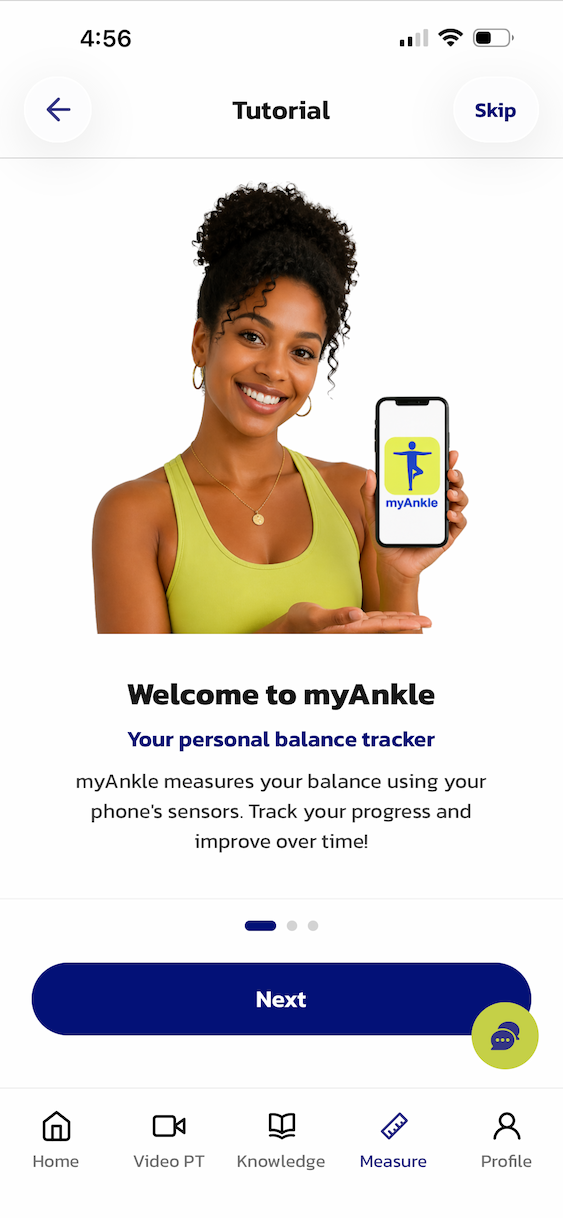
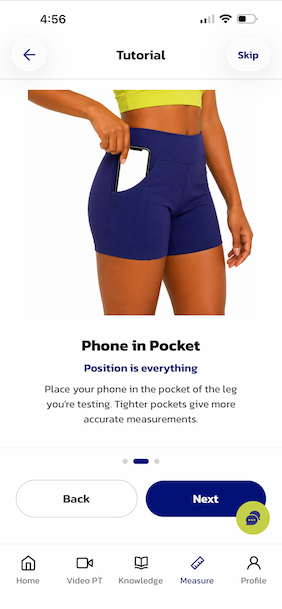
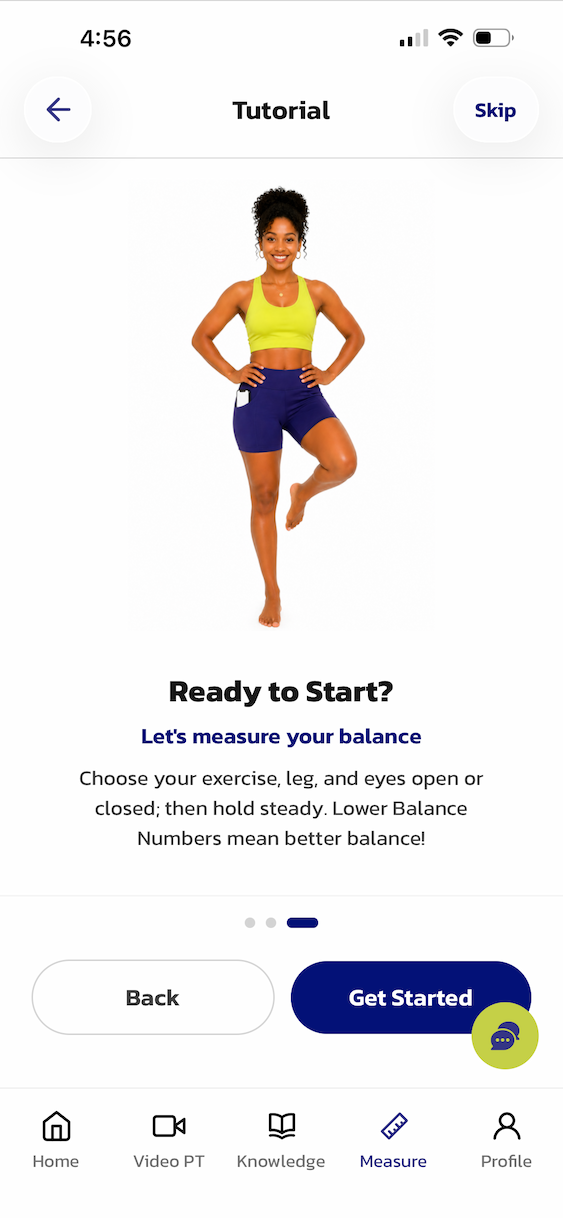
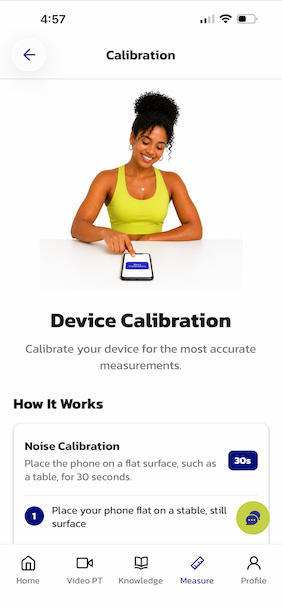
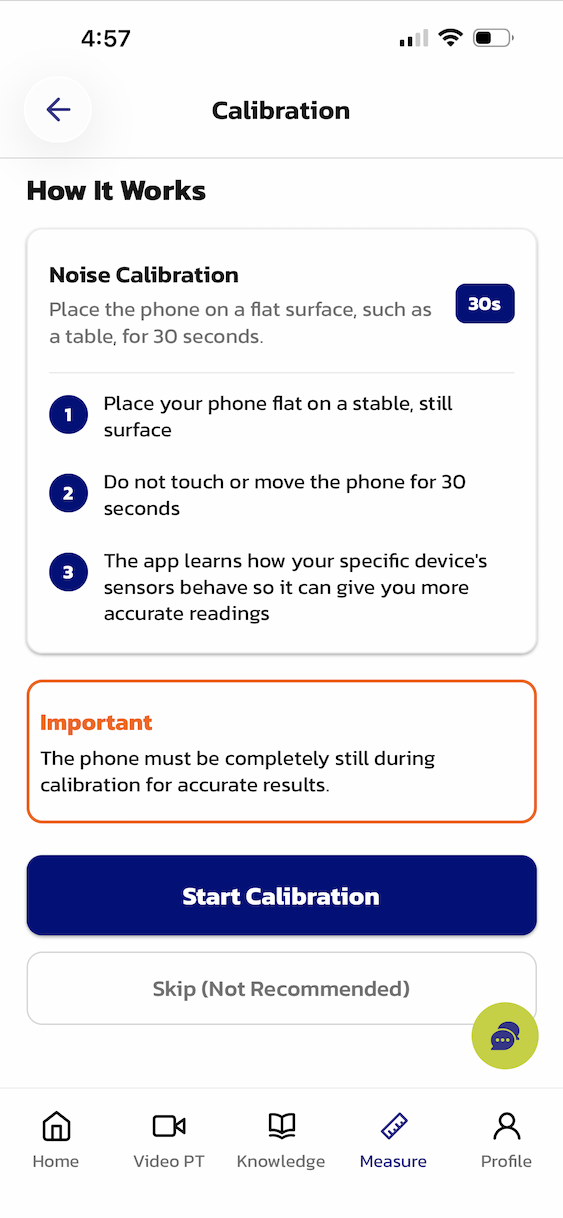
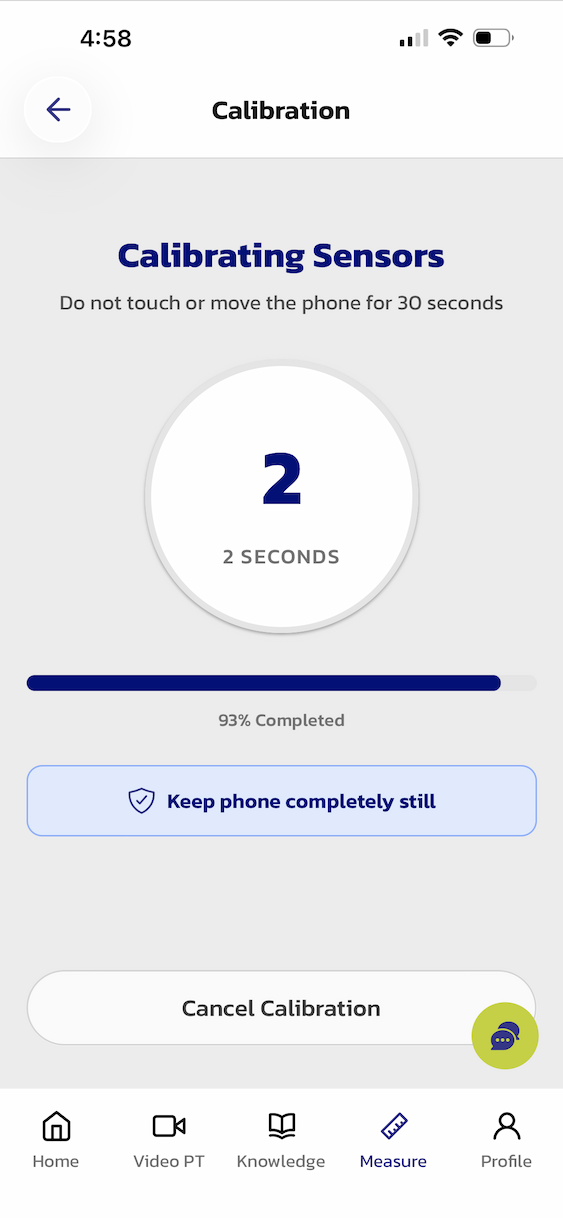
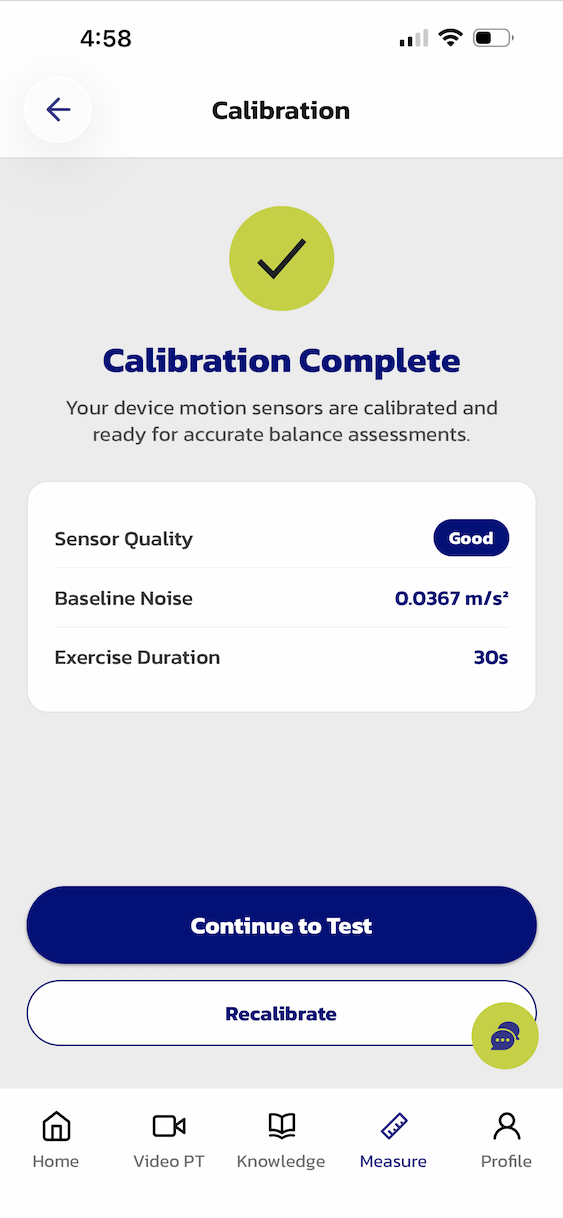
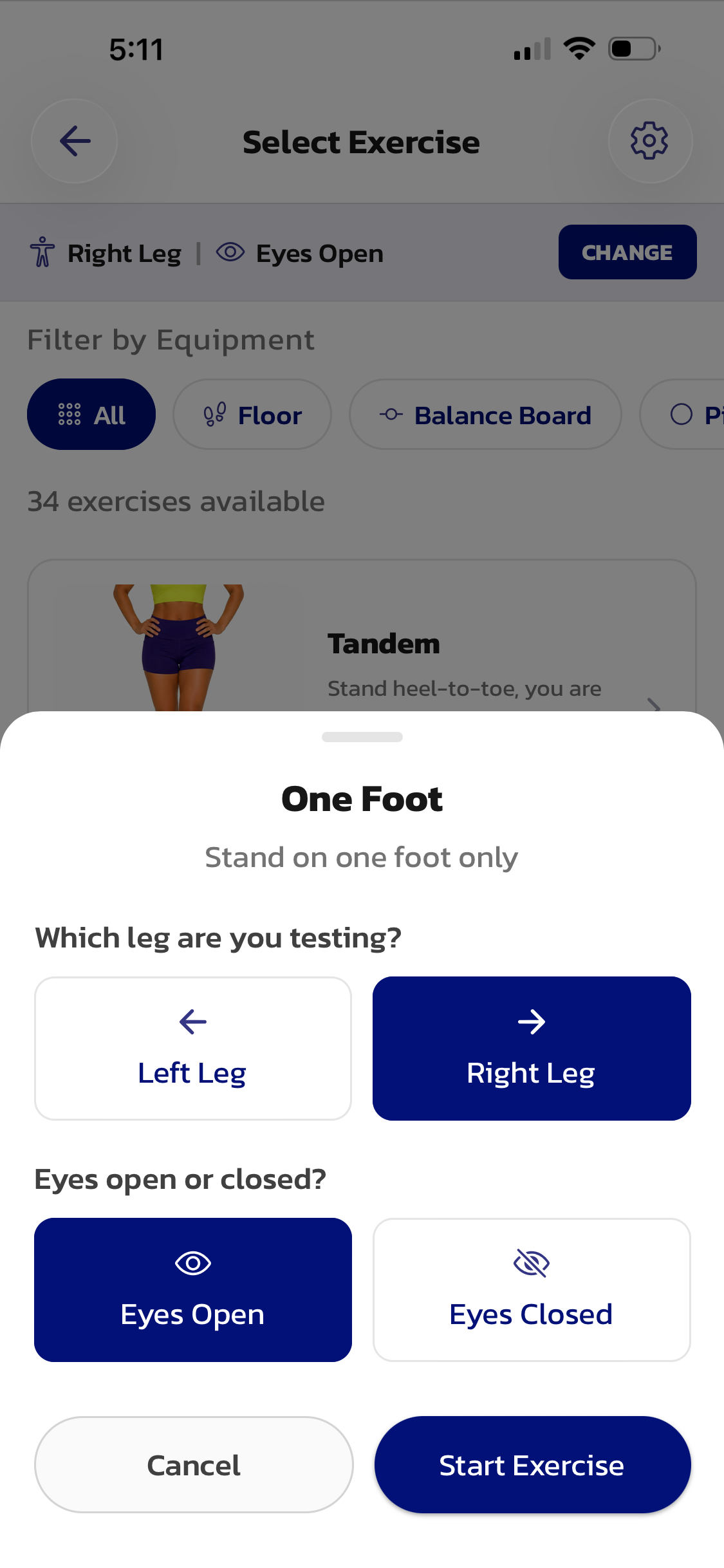
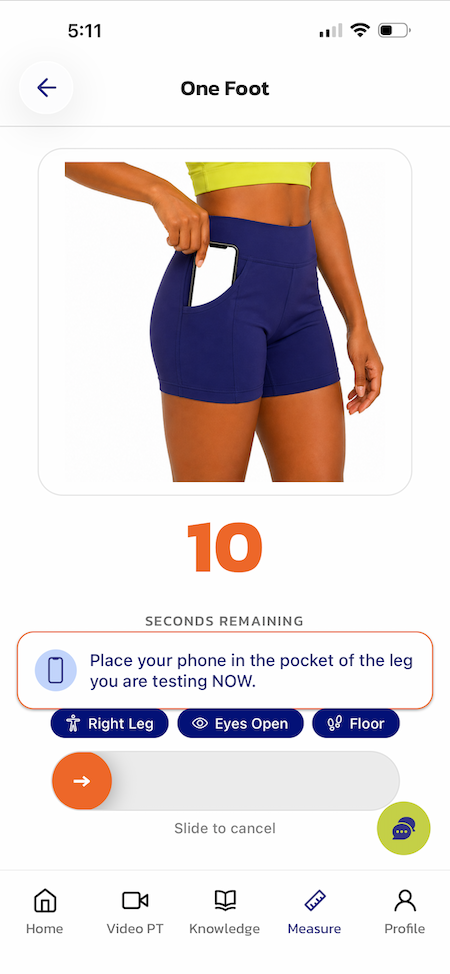
The first time you open Measure Balance you will see a simple tutorial that explains how to use myAnkle. After you pick your balance exercises, and eyes open or closed, you will be asked to put your phone in the pocket of the leg you are testing. This is so that the sensors in your phone can detect the changes in acceleration as you complete a balance test. The very first time you choose an exercise the app will ask you to calibrate your phone. Do not skip this part! Calibration means that the app will independently figure out how much “noise” your phone sensor is making. Noise in this case means unwanted and random signals that interfere with measuring your actual balance. All phone sensors produce some noise and the purpose of calibration is to remove this noise in your balance measurements. All you need to do is place your phone on a flat surface that is not moving or vibrating, press start and then do not touch your phone while myAnkle calibrates for 30 seconds. After this simple step your phone is calibrated and it will account for your phone’s sensor noise and produce more accurate balance measurements. You only need to calibrate once and not each time you want to measure your balance.
Step 4: Start New Test and measure your balance
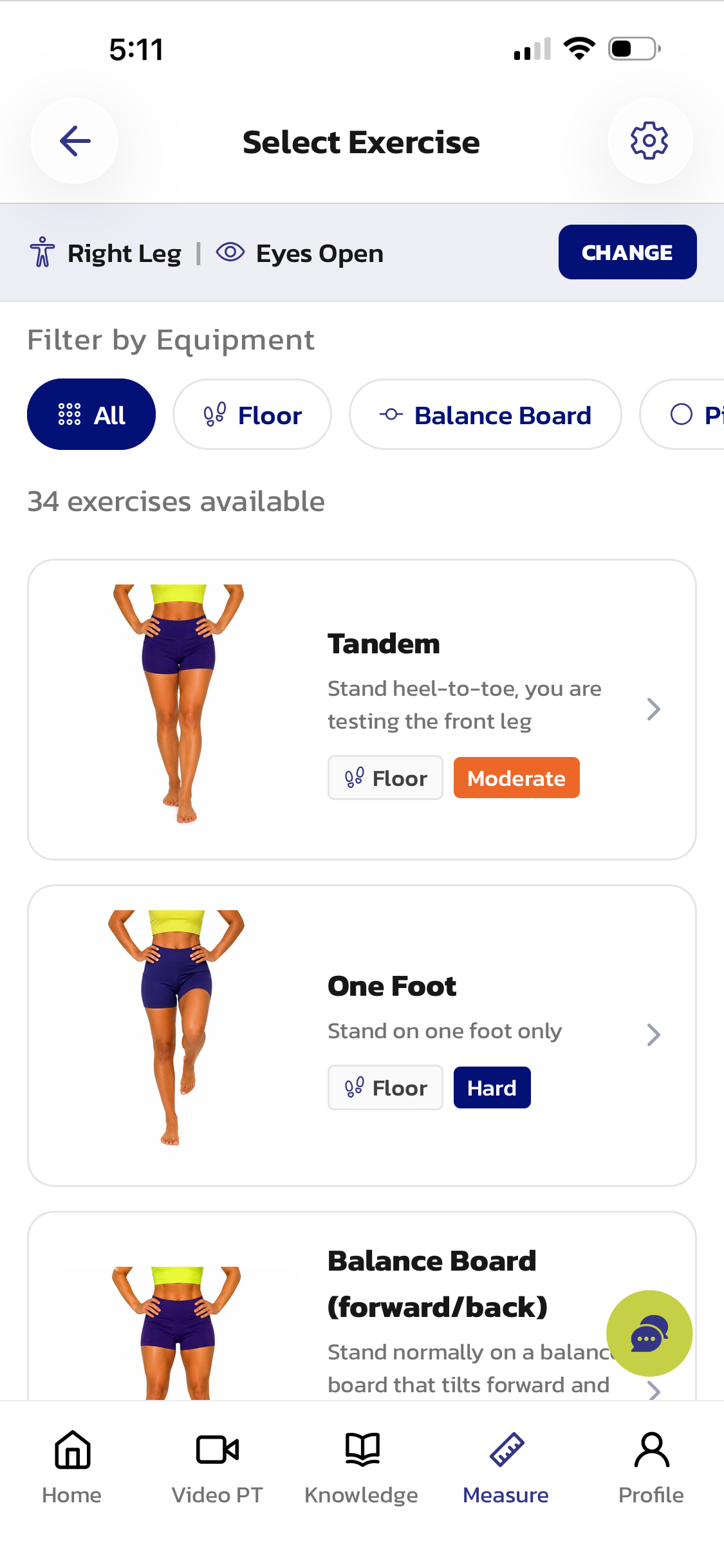
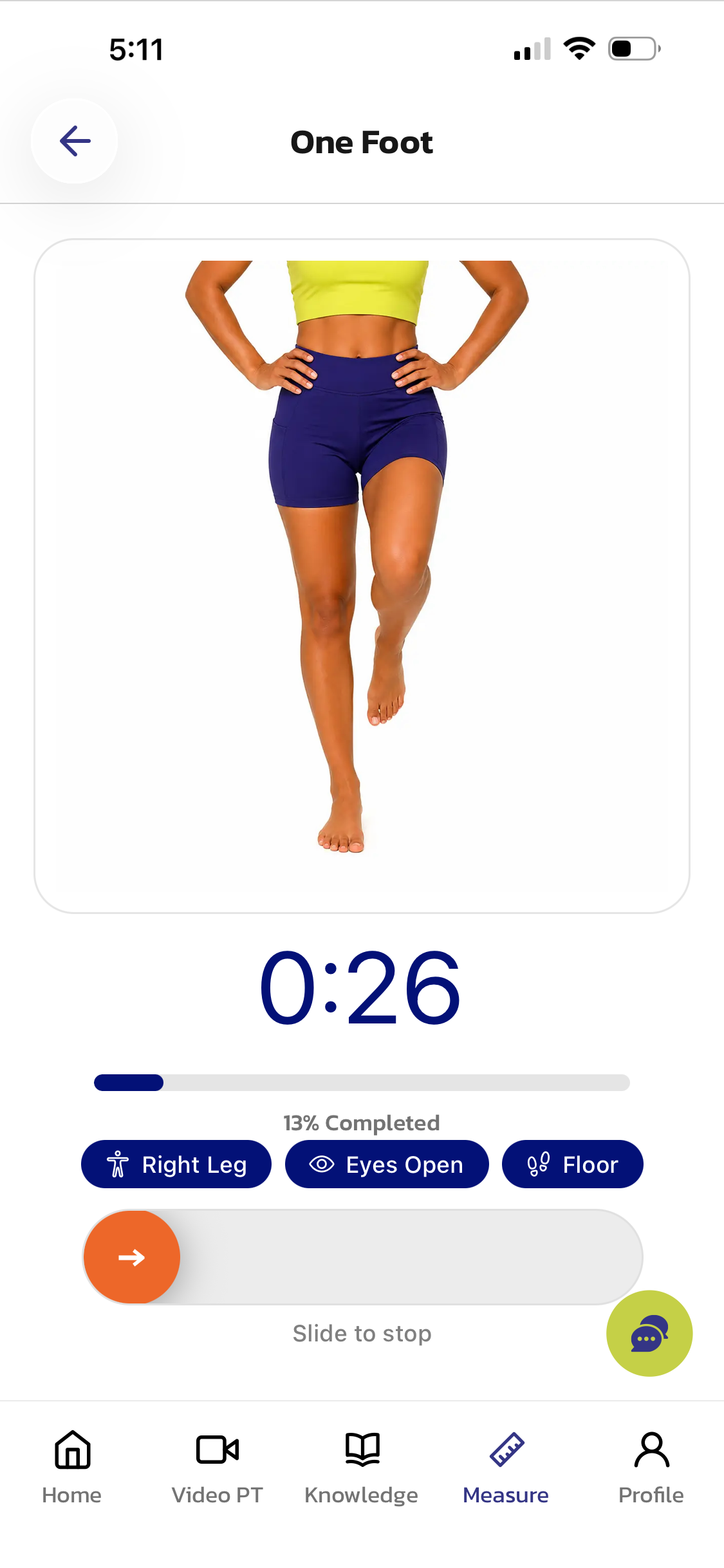
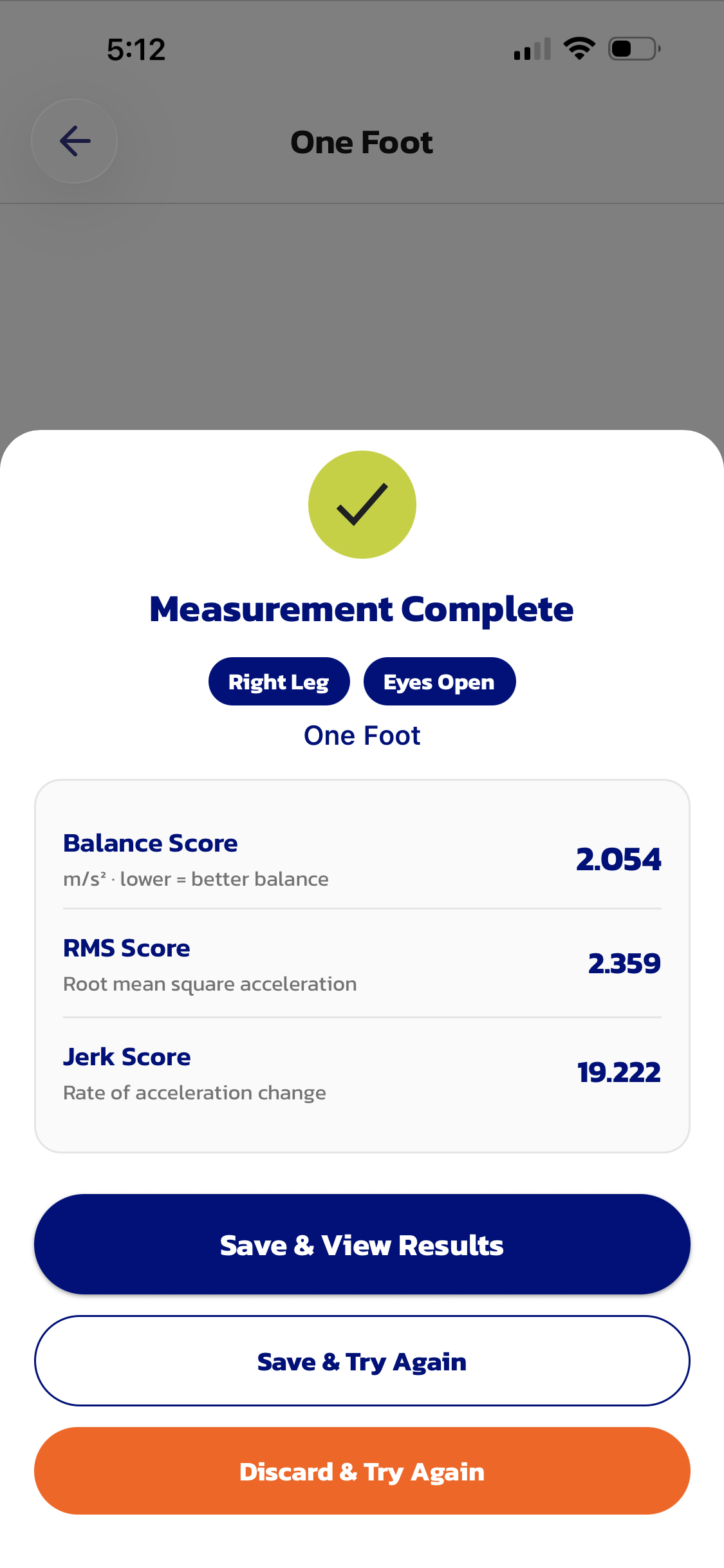
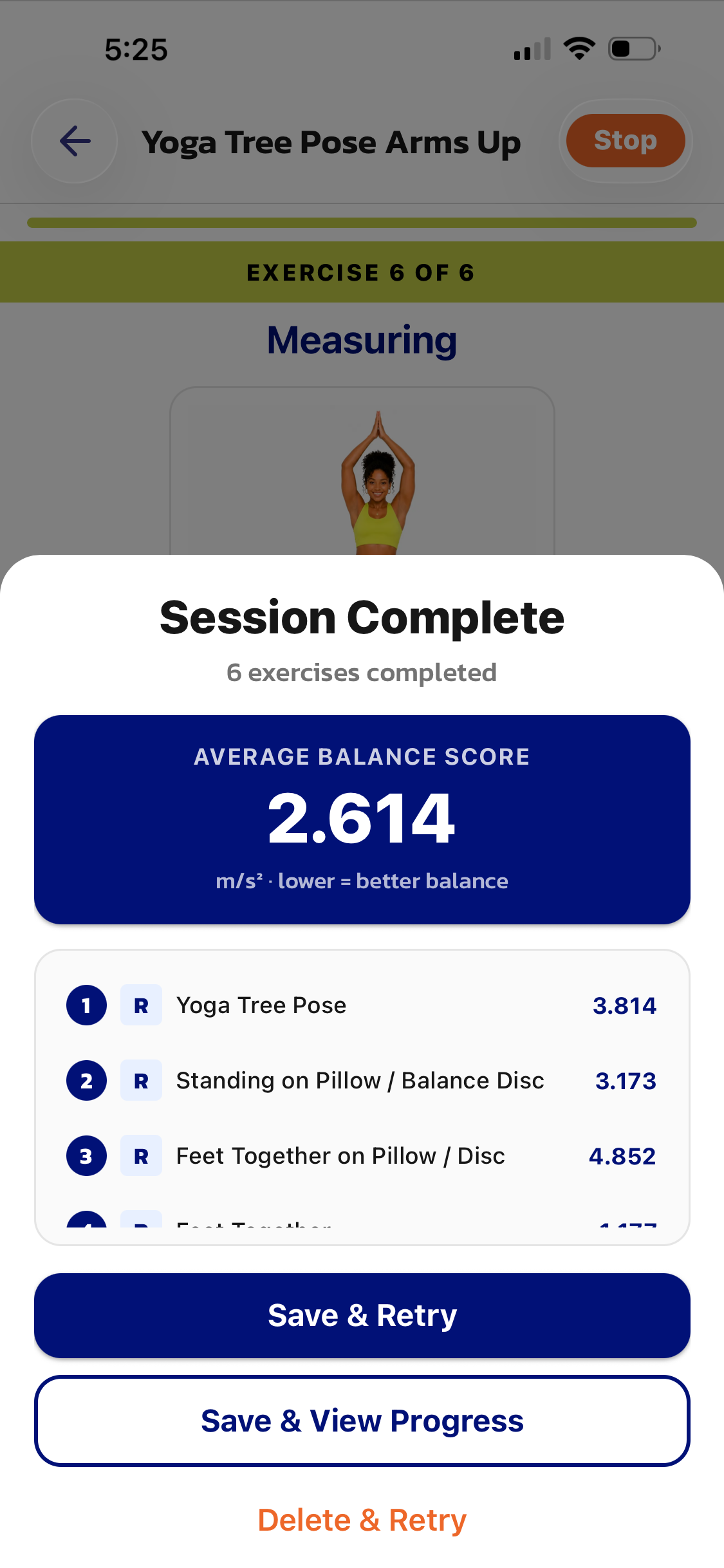
Now that you have gone through the brief tutorial and calibrated your phone, the next step is to select “Start New Test.” You will be presented with 34 possible balance tests. Not to worry, I will keep it simple to complete your very first balance test. I strongly recommend that the first test you try is “One Foot” or single leg standing with your eyes open. Test one leg for 30 seconds and then repeat the same standing on one foot test with the other leg. Once you have tested both the right and left leg balance, a process that takes about 2 minutes, you will have objective numbers to compare your balance on your right and left leg. Once a balance test is complete you will be presented with a Balance Number (BN). This Balance Number is a measure of your acceleration over the time period of the balance test, in this case 30 seconds. Remember that a higher Balance Number indicates poor balance. The leg that has a higher Balance Number has poor balance and the other leg has better balance. For example, if your Balance Number on your left leg was 1.05 m/s2 and 1.85 m/s2 on your right leg, then you have better balance on your left leg (lower Balance Number) compared to your right leg (higher Balance Number).
Step 5: Improve your Balance!
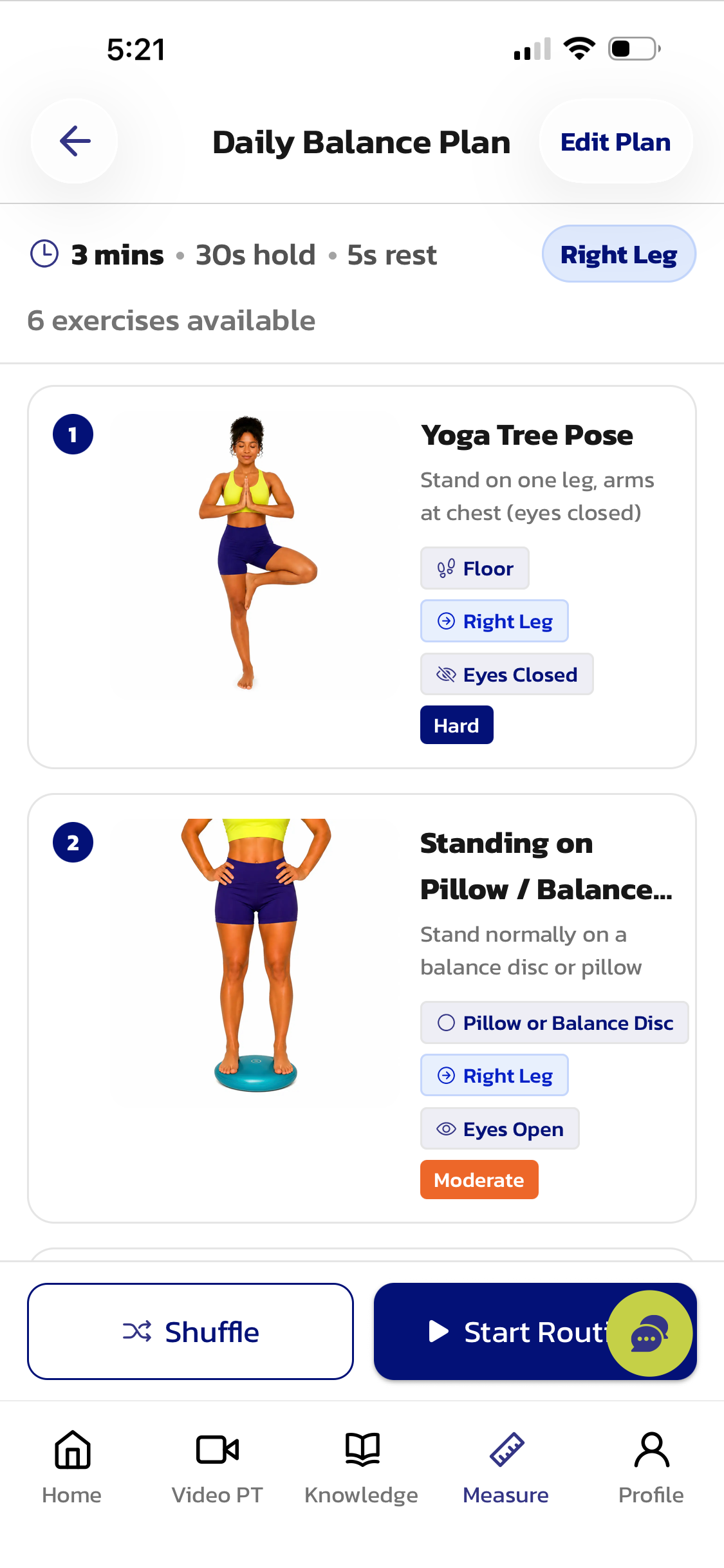
You now know that your balance is worse on one leg or that your balance on both legs is not great. So what? You likely didn’t know about or care about your Balance Number before measuring your balance with myAnkle. You probably used myAnkle because you were trying to improve your balance, you want to prevent injuries or prevent falls. Knowing your balance number does not yet help you do any of this. After conducting my peer-reviewed research study using myAnkle I came to the same conclusion that allowing people to measure their balance doesn’t fix anything! This is why the current myAnkle app has a feature that the original myAnkle app did not have called “Improve My Balance.” By selecting “Improve My Balance” you will be able to choose the number of minutes of balance training you wish to do, the difficulty level of your balance exercises, if you have access to balance equipment and if you want to improve the balance for your right, left or both legs. Once you make these selections the app will automatically create a customized balance program with exercises every day just for you.
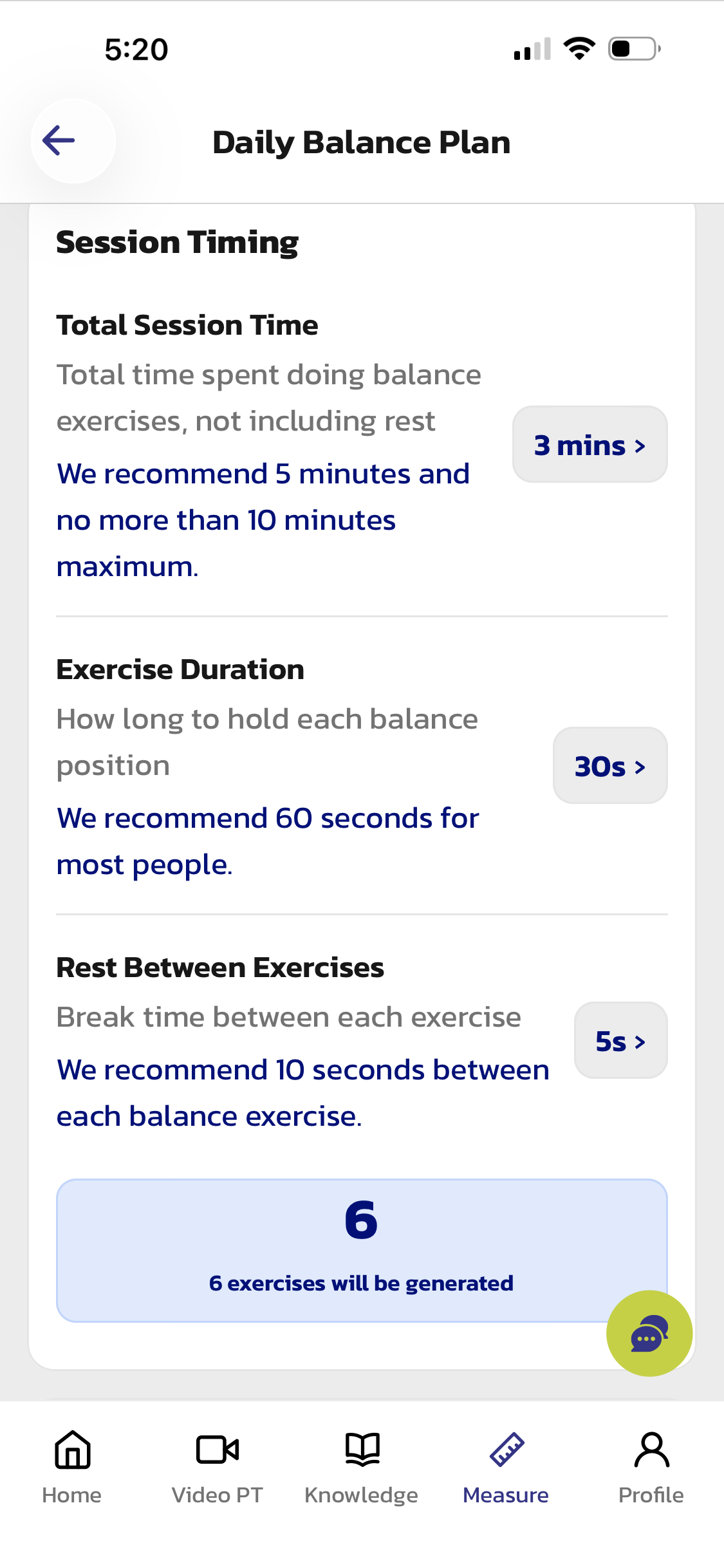
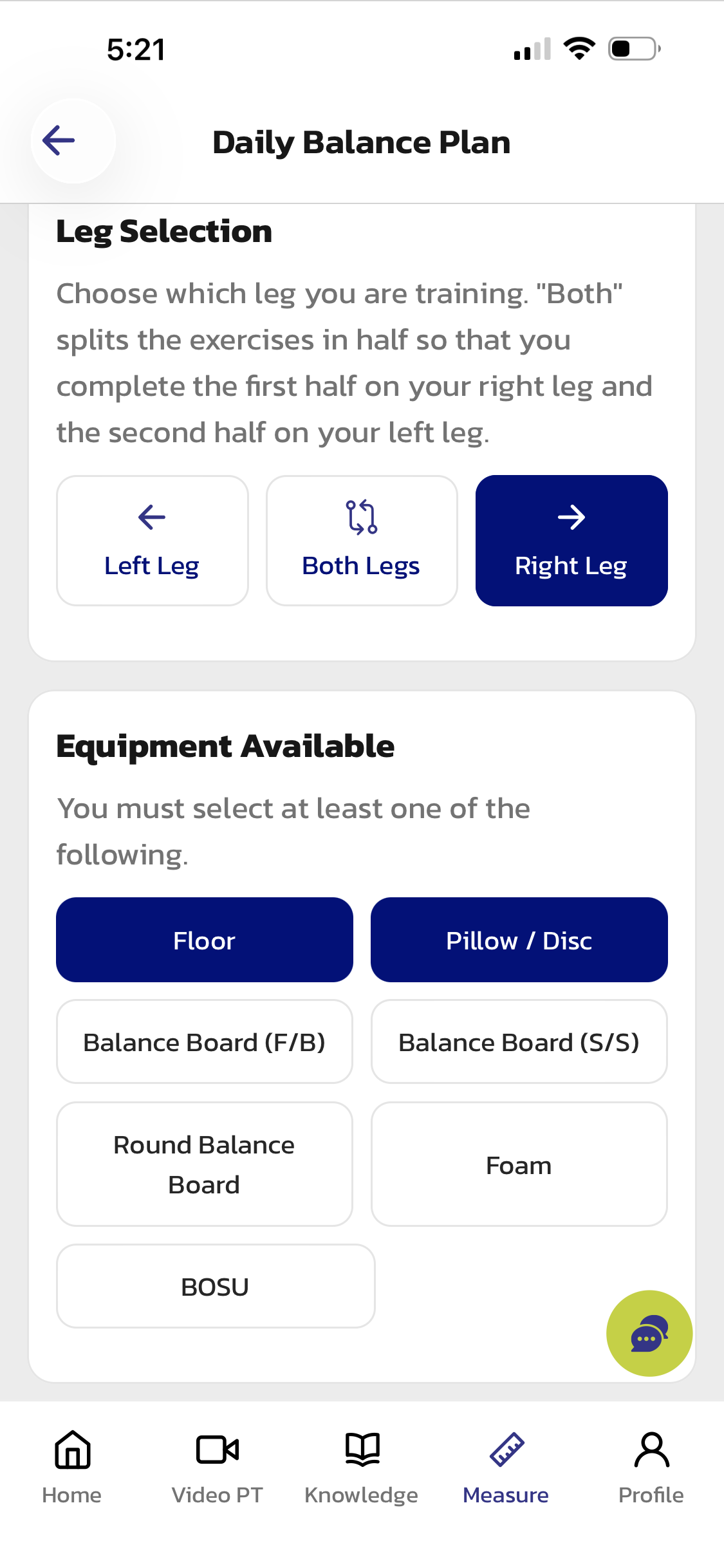
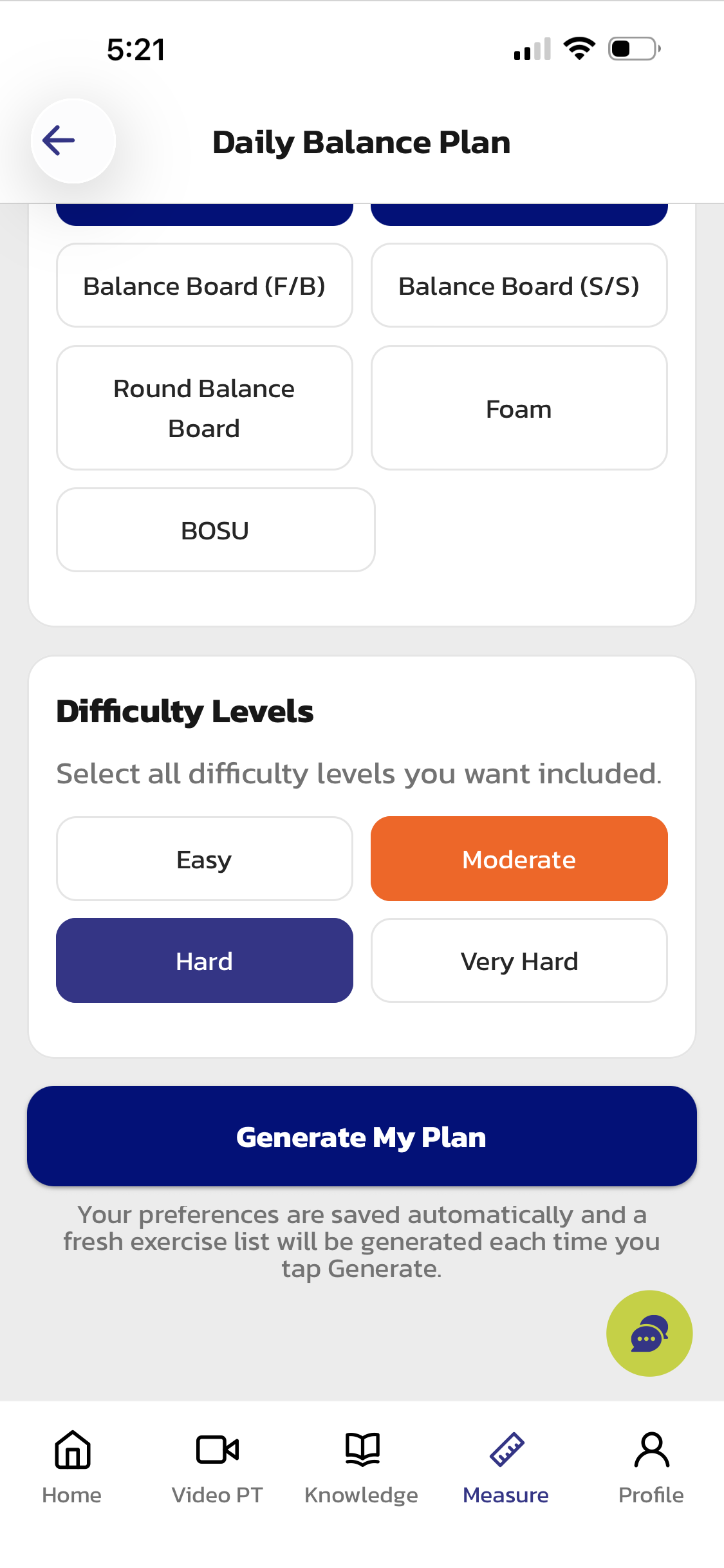
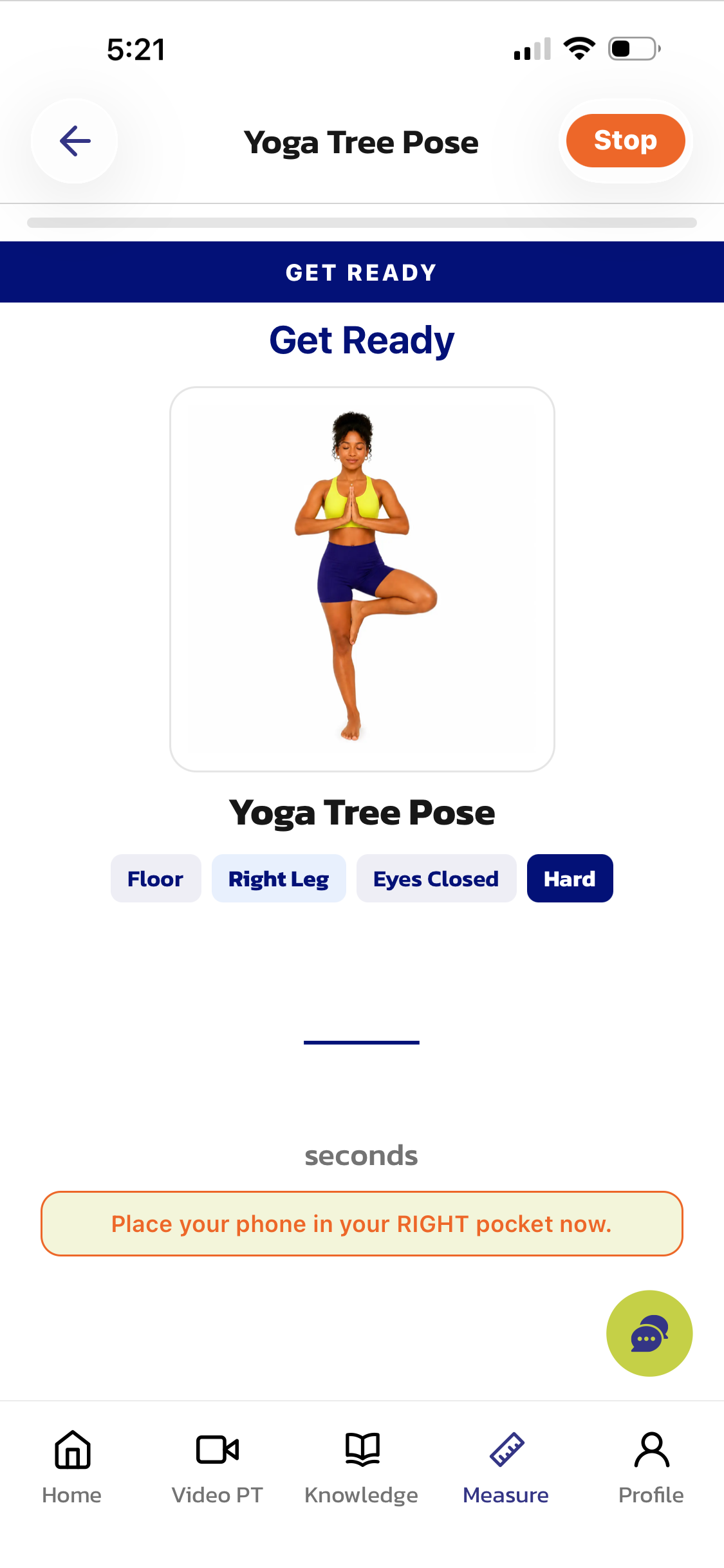
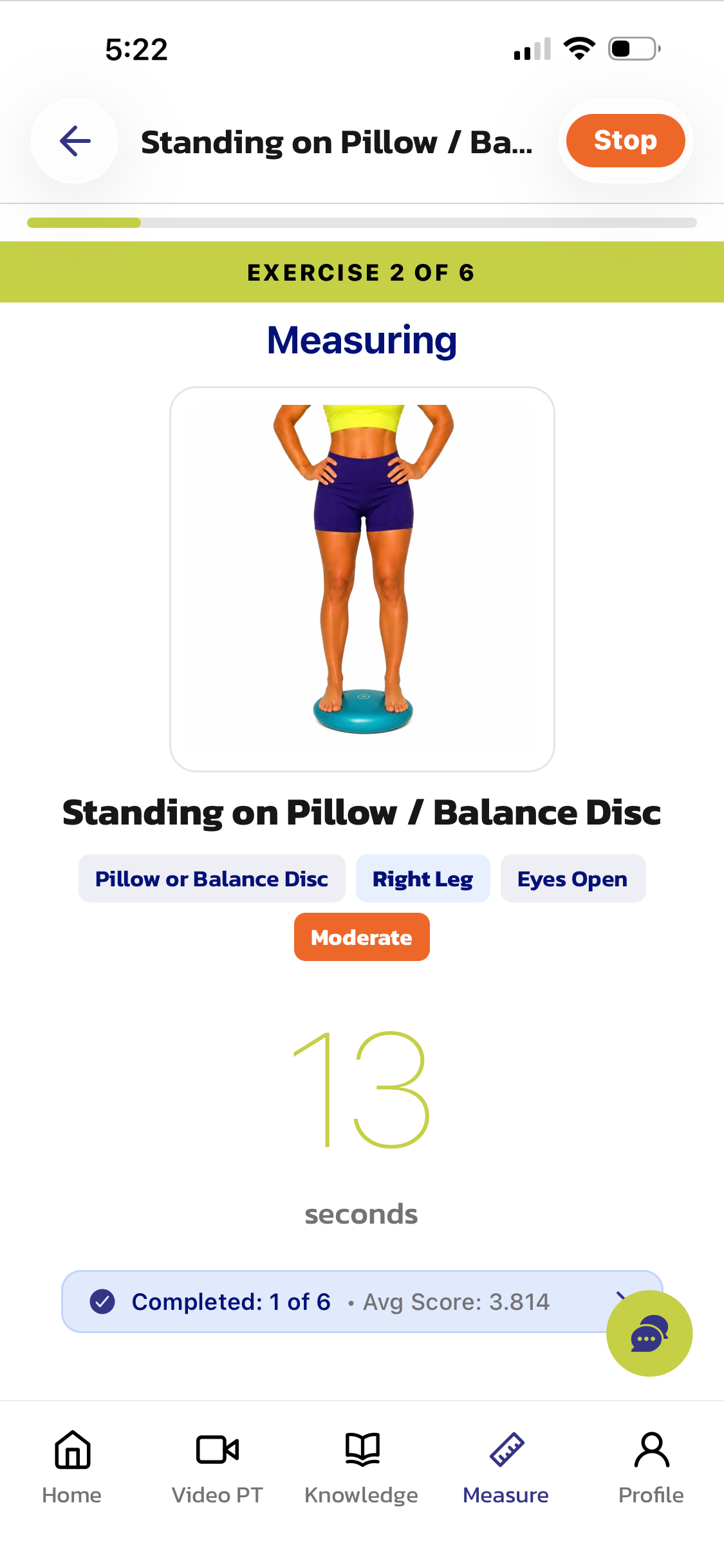
Let me provide a simple example of how to use the Improve My Balance feature. I have tested my balance on one foot and I have determined that my balance on my right leg is worse than my left leg. I want to improve my balance on my right leg so I go to Improve My Balance. I only have 3 minutes per day so I select 3 minutes as my Total Session Time, and I want each exercise to be 30 seconds in duration with a 5 second break between exercises. The app shows me that I will be provided with 6 balance exercises which will be automatically generated. I then specify that I only want to train my right leg, that I can use the floor and I have a pillow under “Equipment Available” and that I want to do moderate and hard balance exercises. I then select “Generate My Plan” and the app provides me with 6 unique balance exercises that I should do to improve the balance on my right leg. I press “Start Routine,” place my phone in my right pocket and start my balance exercise as the app tells me with audio instructions which balance exercise I am completing and if my eyes should be open or closed. The next day I open the app again and when I select “Improve My Balance” the app generates 6 new balance exercises and it remembered that I want to do 3 minutes of balance training per day. If I review the list of exercises and I don’t like the exercises I can select “Shuffle” and the app will auto-generate 6 different balance exercises based on my total time, the difficulty and the balance equipment I previously selected. I can now do unique balance training each day to improve my balance and eventually have equal balance on my right and left legs. Once I have equal balance on both legs the next step is to continue my balance training but now instead of just on my right leg I would switch my selection to “Both Legs” and the app would provide me with 1.5 minutes of balance exercises for each leg.
Step 6: See your Progress
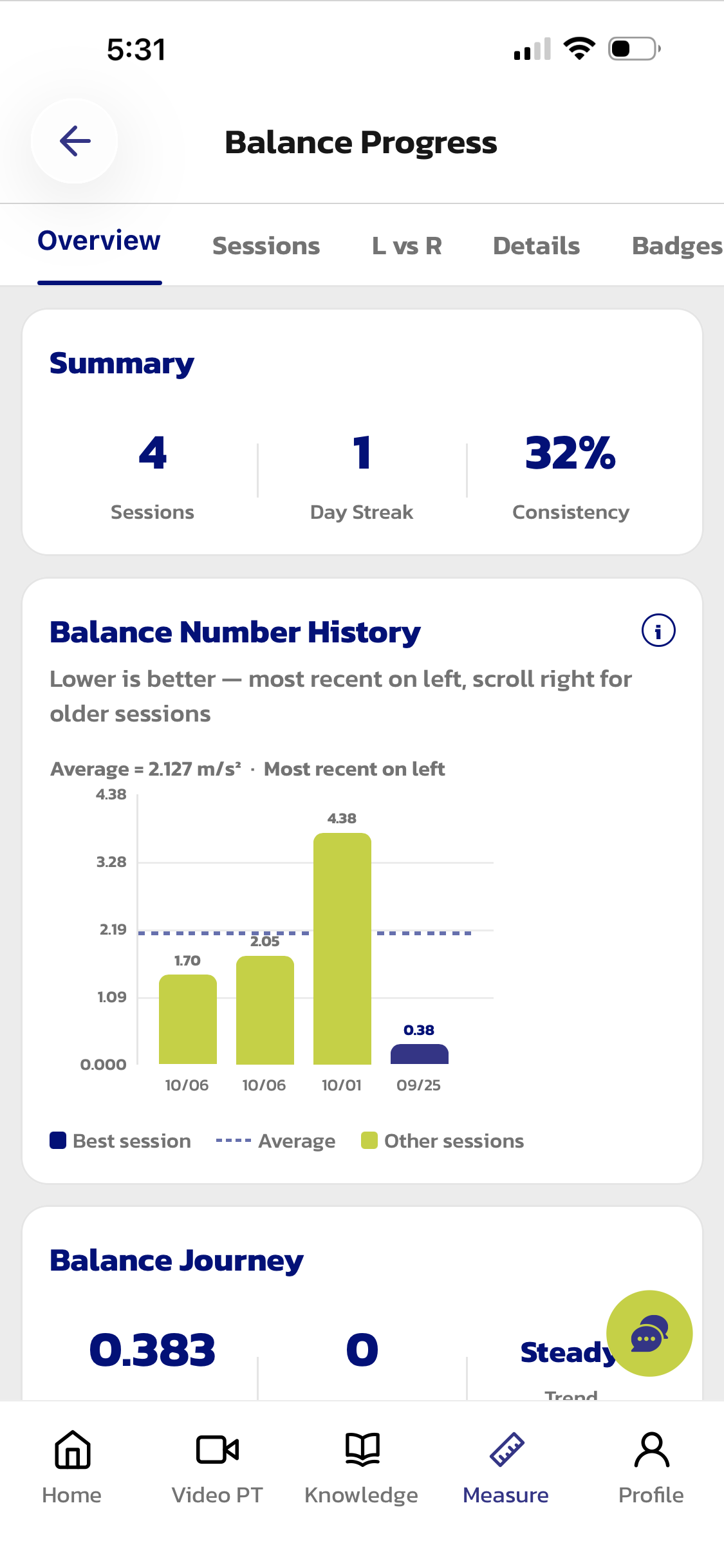
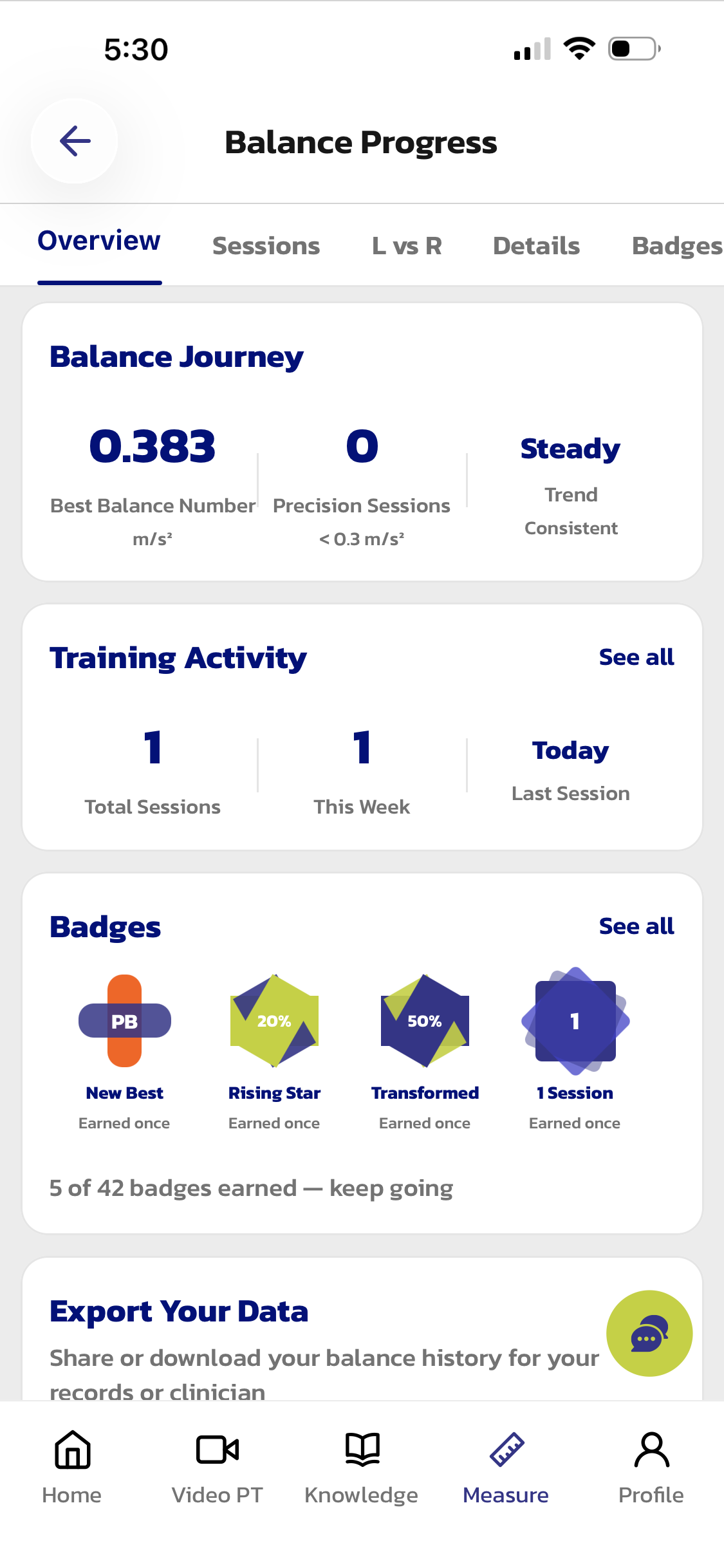
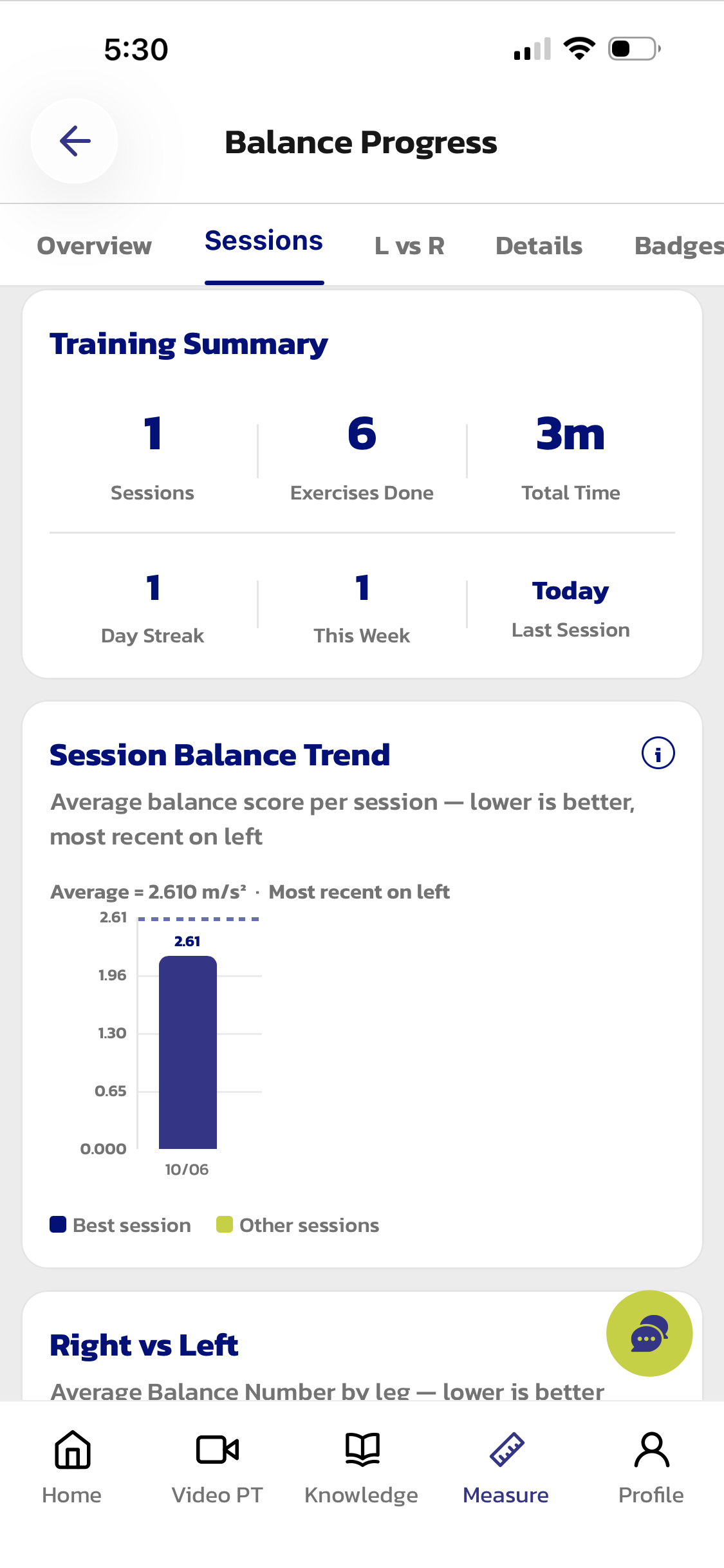
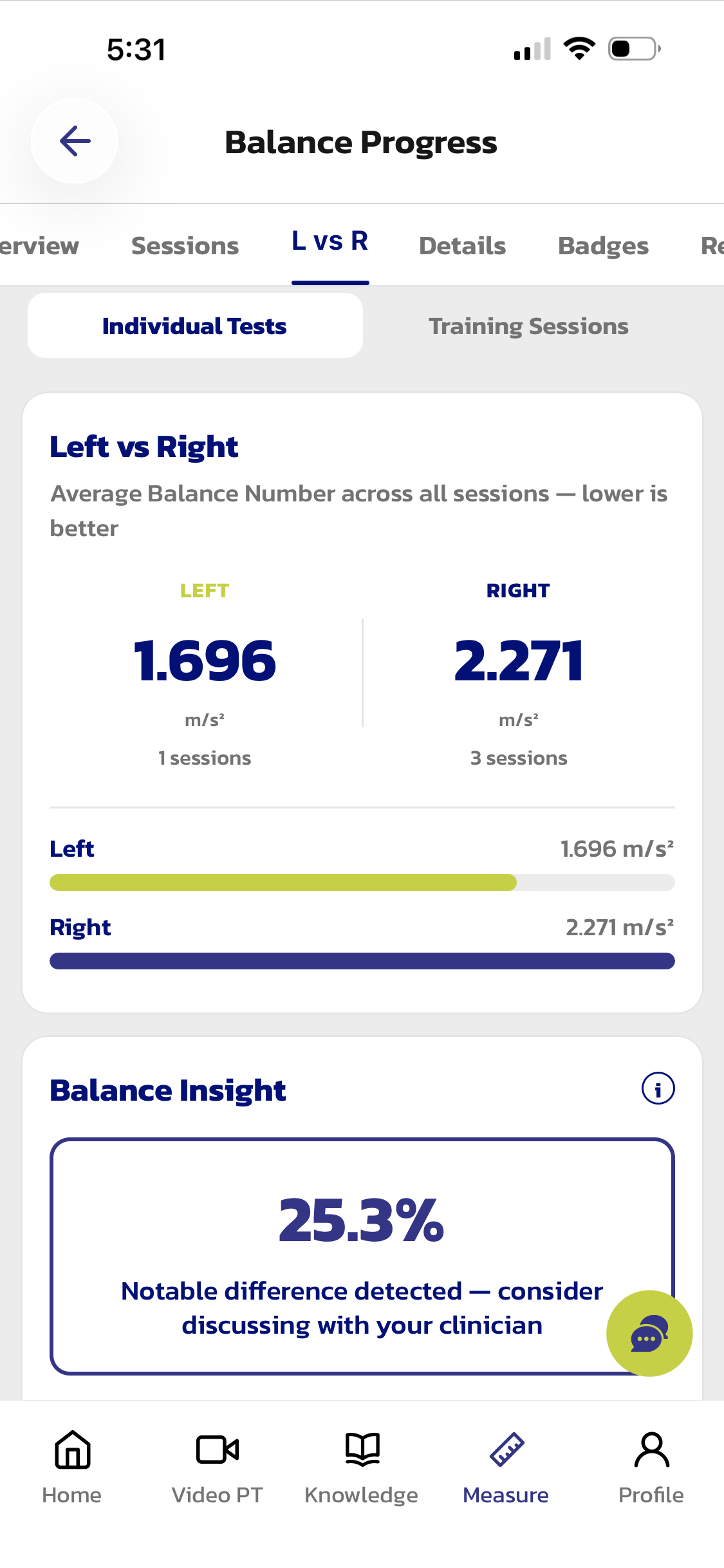
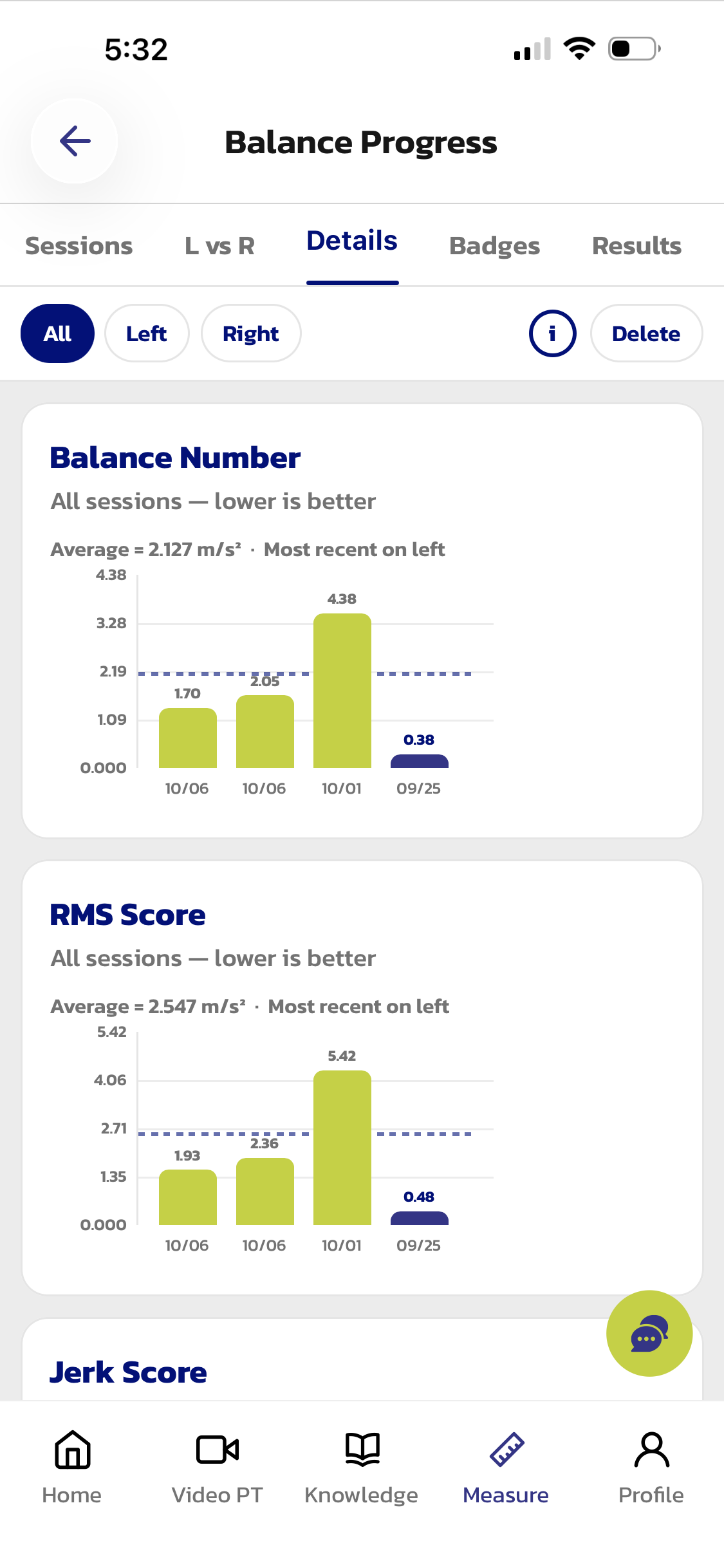
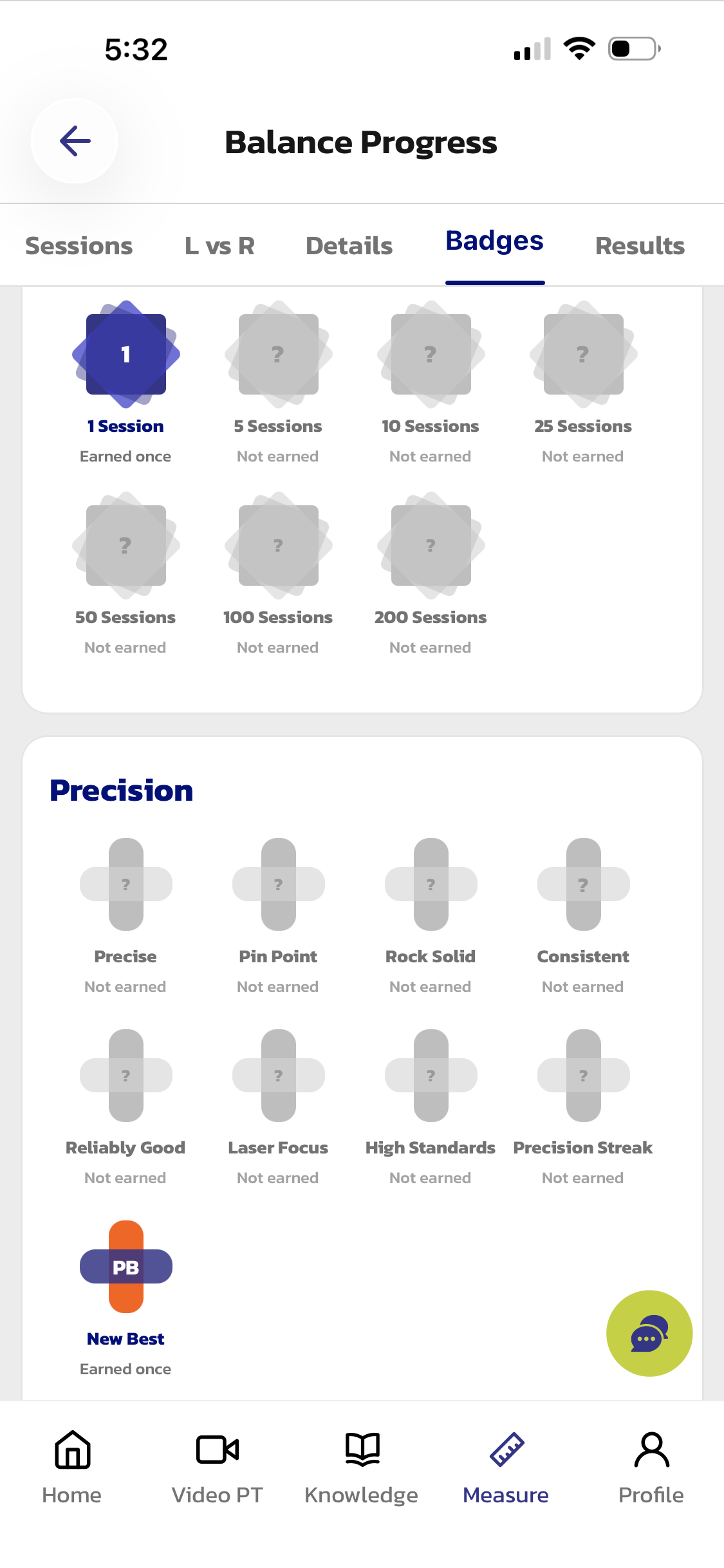
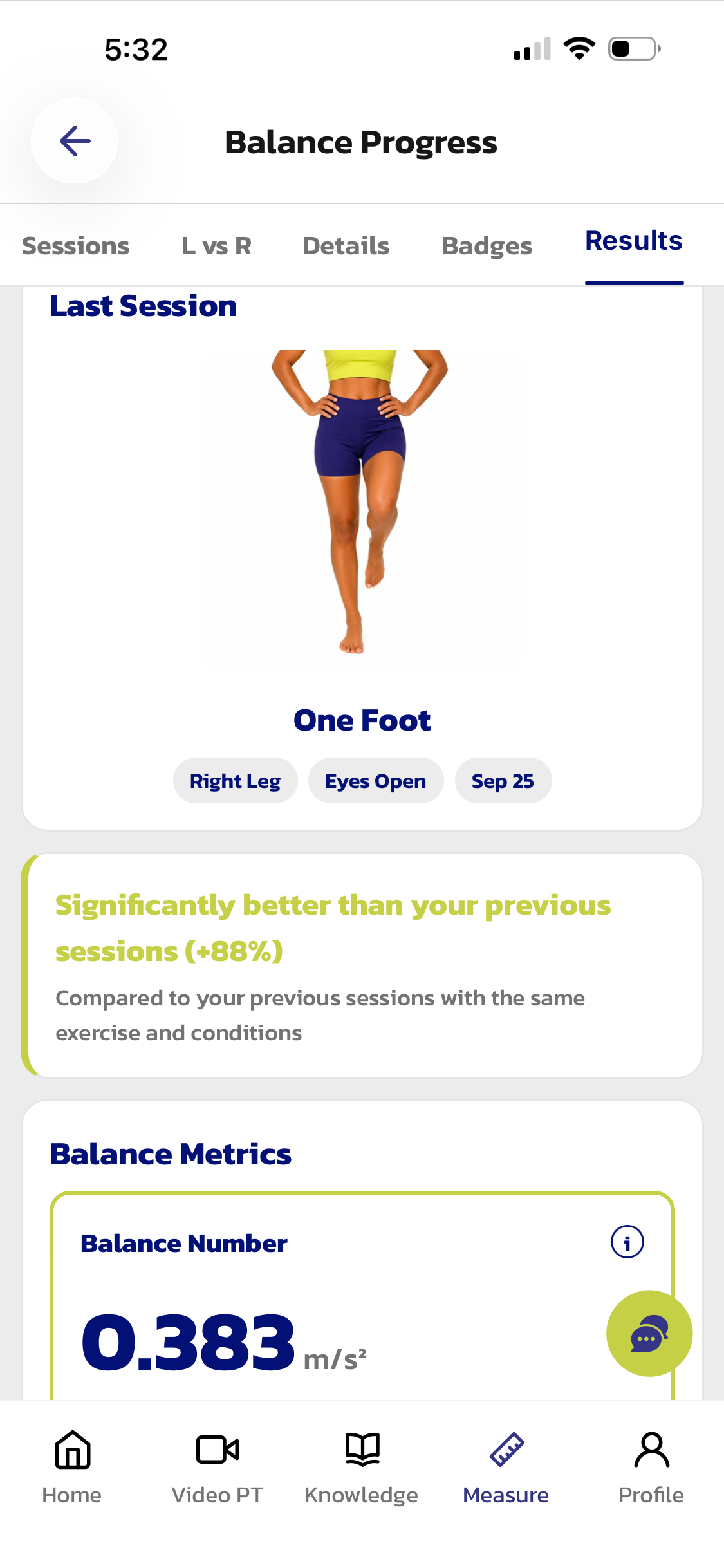
Once you have measured your balance and you have started a training program to improve your balance you should review your progress in the myAnkle app. Simply select “My Progress” and the app will show you all of your balance measurements, your training sessions, a comparison between your right and left leg and the badges that you earned while improving your balance. If you still have issues or challenges with your balance feel free to send me a chat message in the Curovate app to address your specific balance concerns. If you are a clinician or researcher and you would like to utilize myAnkle for research please send us an email at research@curovate.com
Conclusion
This blog shows you detailed screenshots of the myAnkle app to allow you to measure your balance at home with just your phone. myAnkle, the app that measures balance, is now available as part of the Curovate App. To measure your balance at home simply download the Curovate App from the links below and select "Measure" in the app to measure your balance.
If you need further personalized support to help you improve your balance check out our Virtual Physical Therapy page to book your 1-on-1 video session with a licensed physical therapist.